Unlocking Productivity with Gemini in Google Docs
Unlocking Productivity: Gemini in Google Docs
Google Gemini stands out as a powerful suite of multimodal AI models designed to enhance creativity, productivity, and efficiency. Seamlessly integrated across Google products, including the popular Google Docs, Gemini is transforming how we create, refine, and interact with our documents.
What is Google Gemini?
At its core, Google Gemini is a family of advanced AI models capable of processing and understanding various types of data, text, code, images, audio, and video. This multimodal nature allows Gemini to engage in more sophisticated and context-aware interactions than traditional language models. It powers Google's generative AI chatbot and is steadily being integrated into core Google services and devices, from Google Workspace applications to Pixel phones.
Gemini's broad capabilities include:
Content Generation and Refinement: Drafting text, summarisation, rephrasing, and tone adjustment.
Coding Assistance: Explaining, completing, and generating code.
Data Analysis: Assisting with insights in tools like BigQuery.
Creative Tasks: Generating images and even short videos from textual descriptions.
Information Retrieval: Analysing large volumes of text (up to 1 million tokens, equivalent to 1,500 pages) to provide summaries and answers.
Different variants of Gemini (like Nano, Pro, and Flash) are optimised for various tasks and devices, from on-device mobile applications to complex cloud-based operations.
Gemini's Impact on Google Docs
For users of Google Docs, Gemini offers a significant leap in productivity and creative potential. It moves beyond simple spell-checking and grammar suggestions, acting as an intelligent co-creator within your document.
Key features of Gemini in Google Docs include:
Intelligent Writing and Refinement: Using the "Help me write" prompt, users can:
Draft New Content: Generate initial drafts for emails, reports, social media posts, or any text based on a simple prompt.
Rewrite Existing Text: Effortlessly rephrase sentences, shorten paragraphs, elaborate on ideas, adjust the tone (e.g., more formal or casual), or convert text into bullet points.
Contextual Summarisation: Gemini can summarise entire documents or specific highlighted sections. Beyond the current document, it can also pull information from your Google Drive files and even Gmail emails to provide relevant context or summaries directly within Docs.
Image Generation: Directly within Google Docs, you can prompt Gemini to create images, perfect for illustrating your documents without leaving the application.
Idea Generation and Brainstorming: Need to break through writer's block? Gemini can provide creative ideas, suggestions, and different angles for your content.
Accessing Gemini in Google Docs is straightforward, typically through an "Ask Gemini" button or the "Help me write" prompt, appearing as a side panel or in-line suggestion. It's important to note that access to Gemini in Google Docs usually requires an eligible Google Workspace plan or participation in the Google Workspace Labs program.
Mastering Gemini with Google Cloud Skills Boost
For individuals and organisations eager to harness the full power of Gemini, Google Cloud Skills Boost is an invaluable resource. It provides structured learning paths and hands-on labs designed to build proficiency in generative AI and specific Gemini applications.
Here's how Google Cloud Skills Boost can help you master Gemini:
Dedicated Learning Paths:
Gemini for Google Cloud Learning Path: This comprehensive path is tailored for various roles, including developers, data analysts, cloud architects, and security engineers. It demonstrates how Gemini can streamline daily activities, from explaining complex code and recommending Google Cloud services to deploying infrastructure and analysing data.
Generative AI Learning Paths: Both "Introduction to Generative AI" (for non-technical users) and "Generative AI for Developers" (for technical practitioners) provide foundational and advanced knowledge on large language models and responsible AI practices, often featuring Gemini.
Hands-On Labs and Courses:
"Gemini in Google Docs - Activity Explained": Directly relevant to using Gemini within Docs, this course provides practical insights into its functionalities.
"Develop an app with Gemini assistance": Learn how Gemini can assist in application development, including code generation and deployment.
"Enhance Gemini Model Capabilities": Dive deeper into advanced features like code execution, grounding, and synthetic data creation.
Many courses offer hands-on experience in Google Cloud environments like Generative AI Studio and Vertex AI, allowing you to experiment with Gemini models directly.
Certifications: Google Cloud offers a new Generative AI Leader certification, validating strategic understanding of generative AI's impact, including Google Cloud's offerings like Gemini. Preparing for this certification through Skills Boost can significantly boost your career.
By leveraging Google Cloud Skills Boost, users can move beyond a basic understanding to become proficient in integrating Gemini's AI capabilities into their daily workflows, particularly within the familiar environment of Google Docs. Whether you're a writer, developer, analyst, or cloud professional, mastering Gemini through these structured learning programs is a tangible step towards unlocking new levels of productivity and innovation.

What You Can Do with Gemini in Google Docs
Gemini in Google Docs empowers you to streamline your writing process, from initial ideas to polished final drafts. It acts as an intelligent assistant, ready to help you generate content and refine your text with ease.
Drafting New Content: You can ask Gemini to write a first draft for almost anything. Here are some prompt ideas to get you started:
"Write a LinkedIn post announcing our company's new initiative for remote work flexibility."
"Draft an email to my team about an upcoming project deadline, emphasizing key milestones and roles."
"Generate a blog post outline on the topic: 'The benefits of sustainable packaging for modern businesses.'"
Editing and Refining Existing Text: Beyond drafting, Gemini also offers powerful editing features. Simply select the text you wish to modify, and context-aware options will appear to help you refine your writing:
Change the tone: Adjust your text to be more formal, casual, enthusiastic, or concise.
Summarize: Condense lengthy paragraphs or entire sections into brief overviews.
Make into bullet points: Transform blocks of text into clear, scannable lists.
Elaborate: Expand on a specific idea or sentence to add more detail and depth.
Shorten: Reduce the length of your text, perfect for creating concise summaries or social media posts.
Rephrase: Explore alternative wording and sentence structures to improve clarity or impact.
While the technology is continuously evolving and improving, these features provide a robust toolkit for enhancing your productivity and creativity directly within Google Docs.

Activity: Boosting Marketing Campaigns with Gemini in Google Docs
This activity will guide you through using Gemini in Google Docs to brainstorm marketing ideas and refine your content. Imagine you're a marketing executive preparing for a new product launch. You're interested in using Gemini to quickly draft ideas for social media campaigns and marketing copy.
Step 1: Create Content Using Gemini in Docs
Open a new Google Docs document.
Select Help Me Write (you'll usually find this as a button or prompt in the document).
Type your initial prompt. For this example, try something like:
"Write 5 ideas for a social media campaign to promote a new eco-friendly water bottle."
Click Create.
If you like the generated ideas, select Insert.
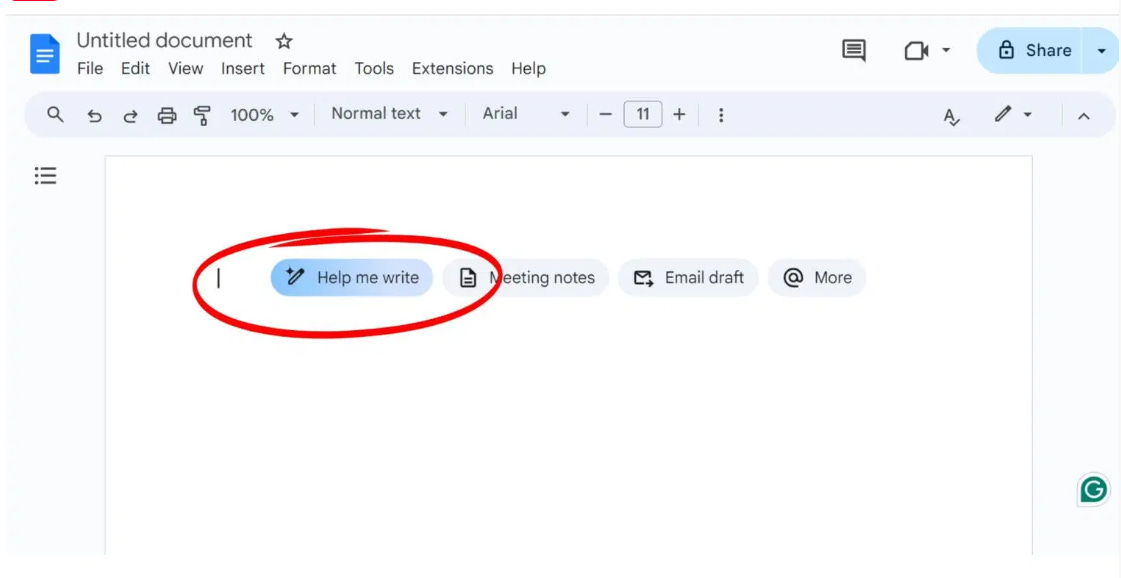
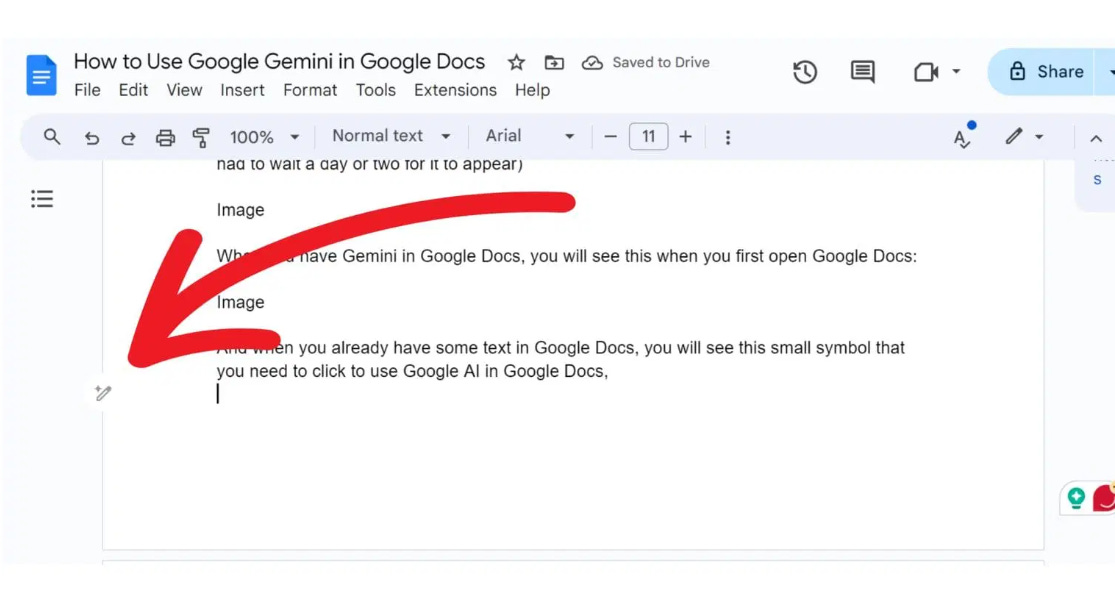
If you already have some text in Google Docs, you can find the symbol that you need to click to use Google AI in Google Docs.
Step 2: Edit and Refine Your Prompt
What if the initial ideas aren't quite what you were hoping for? You can easily refine your prompt to get better results.
To change the prompt, click the field that contains your prompt (the "Help me write" input box).
Edit your prompt to provide Gemini with more context. For instance, if the first suggestions were too generic, you might change the prompt to:
"Write 5 creative social media campaign ideas for a new eco-friendly water bottle, focusing on TikTok and Instagram, including specific post ideas for each platform."
Click Update.
Notice how Gemini generates a more appropriate and targeted list. This demonstrates the importance of providing descriptive prompts to help Gemini understand your expectations. Avoid using overly technical jargon, and consider providing examples if possible.
Step 3: Refine a Drafted Campaign Idea
Gemini in Docs can also help you refine existing text, whether it's something you wrote yourself or text generated by Gemini. Let's refine one of the social media post ideas Gemini generated.
Select the text you want to refine (e.g., one of the social media post descriptions).
Open the "Help me write" options that appear (often a small pop-up or context menu near the selected text).
To change the tone:
Select Tone.
Choose Casual or Formal as appropriate for your marketing message.
To provide an overview:
Select Summarise if you want a concise summary of a longer piece of text.
To adjust length:
Select Elaborate to make the text longer and more detailed.
Select Shorten to reduce the length of the existing text for a more concise message (perfect for social media character limits!).
To change wording:
Select Rephrase to explore different word choices and sentence structures. This is great for fine-tuning marketing copy to be more impactful.